

Best Resolutions for YouTube Video Quality
Choosing the right resolution for your YouTube videos is critical to delivering clear visuals that meet viewer expectations. Here's a quick breakdown of the best resolutions for different needs:
- 8K UHD (7680×4320): Extreme detail for large screens and future-proofing, but requires high-end hardware and significant storage.
- 4K UHD (3840×2160): Strikes a balance between quality and usability. Ideal for professional content and large displays.
- 2K QHD (2560×1440): A middle ground offering sharp visuals with manageable file sizes.
- 1080p Full HD (1920×1080): The most practical choice for most creators, balancing quality, compatibility, and file size.
- 720p HD (1280×720): Suitable for smaller screens and slower internet connections.
- 480p SD (854×480): Basic clarity for mobile-focused content but not recommended for professional videos.
- Vertical 1080p (1080×1920): Perfect for YouTube Shorts, optimized for mobile viewing.
Each resolution has its pros and cons, so your choice should depend on your audience, content type, and hardware capabilities. For most creators, 1080p remains a reliable standard, while 4K is a great option for those aiming for higher production quality. If you're creating Shorts, stick to vertical 1080p for the best results.
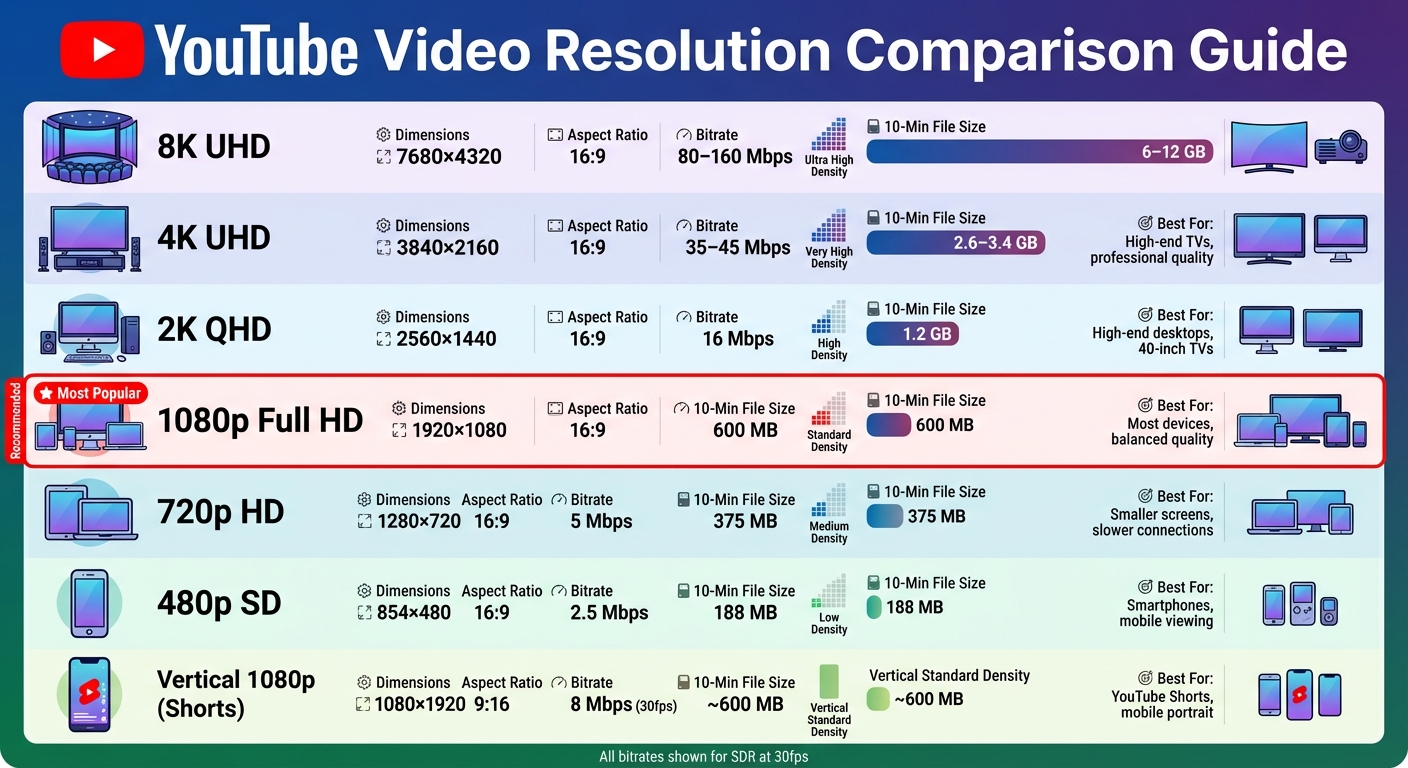
YouTube Video Resolution Comparison Guide: Dimensions, Bitrates, and File Sizes
Video Resolution, Frame Rate & Bitrate Explained (Beginner Guide)
1. 8K UHD (7680×4320)
8K UHD sets a new bar for video quality, offering creators a chance to produce content with extreme detail and clarity that’s ready for future viewing technologies.
Resolution Dimensions and Clarity
With 33.2 million pixels, 8K UHD packs four times the resolution of 4K and 16 times that of Full HD. Its dimensions, 7,680×4,320, deliver incredible sharpness, especially on large screens. The result? A depth and realism that’s perfect for nature documentaries, cinematic projects, and VR content where immersive detail is key.
Another advantage is the flexibility it provides for editing. You can crop 8K footage down to 4K or 1080p without losing quality. This makes it a practical choice for creators who want to adapt their content for multiple formats.
Compatibility Across Devices
Although platforms like YouTube support 8K playback, enjoying it in full resolution requires specific hardware and codecs such as VP9 or AV1. The hardware barrier is significant - 8K TVs are much pricier than top-tier 4K models. Meanwhile, most audiences still watch videos in 4K or even 1080p, as native 8K content is scarce and many devices lack the processing power for smooth playback.
Streaming or uploading 8K content also comes with challenges. You’ll need HDMI 2.1 cables for seamless connections and high-speed internet to handle the massive data loads. Plus, most smartphones and standard laptops can’t fully display 8K resolution, limiting its appeal to those with larger screens or advanced VR headsets like the Apple Vision Pro.
File Size and Storage Impact
8K video files are enormous. For standard frame rates, YouTube recommends bitrates of 80 to 160 Mbps for SDR video. Higher frame rates push that range to 120 to 240 Mbps, while HDR content demands even more - 150 to 300 Mbps. A simple 10-minute 8K video can easily consume several gigabytes of storage. With YouTube’s upload limit capped at 256 GB per file, creators need substantial storage solutions and a stable, wired internet connection for uploads.
Editing 8K footage is no small task either. It requires high-performance GPUs and at least 8GB of RAM to avoid playback issues during editing. These demands make 8K production a serious investment in both hardware and time.
Suitability for Specific YouTube Content Types
8K is best suited for creators working with native 8K footage who want to ensure their content remains cutting-edge as display technology advances. However, exporting in 8K only makes sense if the footage was originally shot in this resolution - upscaling from 4K or lower won’t improve the visual experience.
For most creators, especially those targeting mobile viewers, the benefits of 8K don’t justify the hefty storage and bandwidth requirements. On smaller screens, the difference between a well-produced 4K video and 8K is negligible, making 4K a more practical choice for the majority of content.
2. 4K UHD (3840×2160)
4K UHD strikes a great balance between stunning visual quality and practical usability. It’s become a favorite resolution for YouTube creators who want their videos to look polished and professional - without the massive demands of 8K.
Resolution Dimensions and Clarity
With 3,840×2160 pixels, 4K UHD offers four times the pixel density of Full HD, all while keeping the familiar 16:9 aspect ratio, which fits perfectly on most modern screens. YouTube supports this resolution with a bitrate of 35–45 Mbps for standard frame rates, 53–68 Mbps for high frame rates, and 66–85 Mbps for HDR content. This ensures your videos remain crisp, even when downscaled for lower resolutions. Playback uses the VP9 codec, so viewers need compatible devices or browsers to enjoy native 4K quality.
Compatibility Across Devices
4K's technical advantages extend to its compatibility. When you upload in 4K, YouTube automatically transcodes your video into multiple resolutions, making it accessible for viewers regardless of their device or internet speed. This means your content looks great everywhere - from smartphones to large smart TVs. YouTube’s player also adjusts dynamically to fit the viewer’s screen, though desktop playback defaults to 16:9.
One tip: don’t add black bars to your video. YouTube handles aspect ratio adjustments itself, and manual letterboxing can disrupt this process.
While playback compatibility is a big plus, managing the large file sizes that come with 4K resolution is another consideration.
File Size and Storage Impact
4K files can be hefty, but they’re manageable. For instance, a 10-minute video at standard frame rates may take up several gigabytes, depending on your bitrate settings. YouTube’s 256 GB file size limit gives creators plenty of room to work with. For live streaming in 4K at 60 fps, you’ll need a bitrate of 35 Mbps with H.264 or 10–40 Mbps when using AV1 or H.265 codecs. However, keep in mind that 4K live streams default to normal latency, as low latency isn’t supported for this resolution.
To optimize storage and maintain quality, consider pre-render denoising to reduce file sizes. Using MP4 containers with H.264 video and AAC-LC audio codecs is also highly recommended for smooth uploads.
Suitability for Specific YouTube Content Types
4K is a fantastic choice for content where visual quality is key. Tutorials, product reviews, travel vlogs, and educational videos all benefit from the extra clarity. This resolution shines on large displays and high-end monitors, where the added detail is especially noticeable. For creators aiming to establish a professional presence, 4K enhances your production value and can help your videos stand out in search results.
Another advantage? Uploading in 4K prepares your content for the future. As more viewers upgrade to 4K-capable devices and larger screens - including smartphones - your videos will continue to look sharp and relevant. For creators who want to balance today’s needs with tomorrow’s trends, 4K is a smart choice.
3. 2K QHD (2560×1440)
If you're looking for a sweet spot between ultra-high resolutions and practicality, 2K QHD might just be the answer. Positioned as a middle ground after 4K, it offers impressive clarity without the heavy storage and processing requirements that 4K demands. With its resolution of 2,560×1,440 pixels, 2K provides nearly twice the detail of 1080p, making it an excellent choice for creators balancing quality with efficiency.
Resolution Dimensions and Clarity
At 2,560×1,440 pixels, 1440p delivers sharper visuals and crisper text, especially noticeable on larger screens. YouTube suggests a bitrate of 16 Mbps for standard frame rates (24–30 fps) and 24 Mbps for higher frame rates (48–60 fps). For HDR content, these numbers rise to 20 Mbps and 30 Mbps, ensuring vibrant and detailed playback.
Uploading in 1440p has another hidden benefit: YouTube's transcoder creates better-quality versions of lower resolutions, like 1080p and 720p. This means even users who aren’t watching in native 2K will experience fewer compression artifacts and improved video quality overall.
Compatibility Across Devices
The 16:9 aspect ratio of 1440p ensures it displays beautifully on desktops and modern mobile devices like smartphones and tablets. While most mobile viewers stick to lower resolutions like 1080p, those with high-end devices will appreciate the sharper visuals. For creators, 2K is particularly useful for content featuring text, diagrams, or detailed screen recordings. Checking your YouTube Analytics can help determine if a large portion of your audience uses high-resolution devices, making the jump to 2K worthwhile.
File Size and Storage Impact
Compared to 1080p, 2K doubles the file size at similar frame rates. For instance, a 10-minute 1440p video at 16 Mbps consumes about 1.2 GB, compared to 600 MB for a 1080p video at 8 Mbps. This increase can mean longer upload times and slower downloads for viewers with limited bandwidth. While YouTube’s 256 GB file size limit provides ample room for uploads, managing your storage efficiently becomes essential as your video library grows.
For live streaming at 1440p and 60 fps, recommended bitrates range from 6 Mbps to 30 Mbps, depending on the codec used (e.g., AV1, H.265, or H.264). The MP4 container paired with the H.264 video codec and AAC-LC audio codec strikes a good balance between quality and compression. This makes 2K particularly appealing for content that demands sharp text and intricate detail.
Suitability for Specific YouTube Content Types
2K shines in content where detail is key, such as gaming videos, product reviews, cinematography, tutorials with on-screen text, and any showcase requiring precision. However, if your audience primarily watches on smartphones, the improvement in clarity may not be as noticeable, making 1080p a more practical option. Still, 2K offers a polished, professional look while being less demanding than 4K.
4. Full HD 1080p (1920×1080)
When it comes to balancing video quality and practicality, 1080p stands out as a reliable choice. With a resolution of 1920×1080 pixels, it delivers sharp, professional visuals on a wide range of devices without the hefty file sizes that come with higher resolutions. For creators juggling quality, upload speed, and storage, 1080p often strikes the perfect balance.
Resolution Dimensions and Clarity
1080p packs approximately 2 million pixels into each frame, offering crisp and detailed visuals that perform well on smartphones, tablets, laptops, and TVs. YouTube suggests a bitrate of 8 Mbps for standard frame rates (24, 25, or 30 fps) and 12 Mbps for higher frame rates (48, 50, or 60 fps). For HDR content, these bitrates increase to 10 Mbps and 15 Mbps, respectively. Using the H.264 video codec with AAC-LC audio codec ensures an efficient balance of compression and compatibility.
If you're working with 1080i (interlaced) footage, it's important to deinterlace it to 1080p (progressive) before uploading. For example, convert 1080i60 to 1080p30 to avoid visual artifacts. Additionally, upscaling 1080p footage to 4K before uploading can sometimes improve perceived quality due to higher bitrates.
Compatibility Across Devices
The 16:9 aspect ratio of 1080p ensures smooth playback on virtually every device, including desktops, smartphones, smart TVs, and gaming consoles. YouTube automatically adjusts 1080p uploads to match the viewer's device and internet speed, making it a universally compatible resolution. It’s also the recommended format for YouTube ads and meets the minimum standard for videos intended for sale or rental on the platform.
To avoid issues like shuddering images, always upload your video in its original frame rate rather than resampling it.
File Size and Storage Impact
Compared to 4K and 8K resolutions, 1080p is much more storage-friendly. A 10-minute video at 8 Mbps typically uses just a few hundred megabytes. This makes it an excellent option for creators with limited bandwidth or storage space. YouTube allows uploads of up to 256 GB or 12 hours in duration. For live streaming at 1080p and 60 fps, a bitrate of 12 Mbps is generally sufficient, which is far less demanding than the requirements for 4K streaming.
Suitability for Specific YouTube Content Types
1080p is a versatile resolution that works well for a wide variety of YouTube content, including long-form videos, live streams, and ads. It’s an industry standard that provides professional results without the extended rendering and upload times associated with higher resolutions. For YouTube Shorts, use the vertical 1080×1920 format (9:16 aspect ratio) to ensure your video fills mobile screens perfectly. Whether you’re producing tutorials, vlogs, product reviews, or gaming content, 1080p delivers the clarity your audience expects while keeping your production process manageable.
5. HD 720p (1280×720)
If you're working with a limited budget, 720p offers a practical way to step into HD video production. At 1280×720 pixels, this resolution meets YouTube's minimum standard for HD, providing decent clarity while keeping storage and bandwidth demands manageable. As William Gasner, CMO at Stack Influence, explains:
"720p HD gives clear quality with moderate file size."
Resolution Dimensions and Clarity
With around 921,600 pixels per frame, 720p sticks to the standard 16:9 aspect ratio. YouTube suggests a bitrate of 5 Mbps for standard frame rates (24, 25, or 30 fps) and 7.5 Mbps for higher frame rates (48, 50, or 60 fps). For HDR content, these numbers go up to 6.5 Mbps and 9.5 Mbps, respectively. When live streaming at 720p and 60 fps, a bitrate of about 6 Mbps is recommended. This balance between image clarity and efficiency makes 720p a practical option for creators prioritizing cost and simplicity.
Compatibility Across Devices
On smaller screens like smartphones or tablets, 720p looks sharp, as the difference between 720p and 1080p is hard to notice with the naked eye. On desktop monitors, the resolution is functional but noticeably less crisp compared to 1080p. However, on larger TVs - like 65-inch displays - 720p can appear soft or pixelated due to the lower pixel density. This makes it a great choice for viewers with slower internet connections or limited data plans, as it streams smoothly without frequent buffering.
File Size and Storage Impact
One of 720p's strengths is its efficiency. Streaming at this resolution typically uses between 0.9 and 1.5 GB of data per hour. For smooth playback, Netflix recommends a minimum internet speed of 3 Mbps, compared to 5 Mbps for 1080p. For creators, the smaller file sizes mean less strain on storage and faster upload times, making it ideal for those with limited bandwidth or processing power for editing. These advantages make 720p a practical choice for a variety of content needs.
Suitability for Specific YouTube Content Types
720p shines in content where ultra-high detail isn't a priority. This includes vlogs, remote lectures, online interviews, product reviews, and "talking head" educational videos. It's also a reliable option for live streaming when upload speeds are inconsistent, helping avoid lag and maintaining a stable connection. However, while 720p qualifies as HD, it should be considered the bare minimum for YouTube uploads - lower resolutions risk losing viewers due to perceived poor quality.
sbb-itb-08cadfc
6. SD 480p (854×480)
Standard Definition 480p is a low-resolution option that serves specific purposes. With dimensions of 854×480 pixels, it retains the standard 16:9 aspect ratio and results in much smaller file sizes. YouTube suggests a bitrate of 2.5 Mbps for standard frame rates and 4 Mbps for higher frame rates.
Resolution Dimensions and Clarity
480p provides basic visual clarity but lacks HDR support, which is only available at 720p or higher. On larger screens, the limitations of this resolution become apparent. Bridget O'Rourke from Riverside highlights this issue:
"If you're watching on your smartphone, a 480p video will usually look sharp enough. The same resolution, however, will look blocky and choppy on a massive 65" OLED TV."
This makes 480p better suited for smaller screens, where its lower clarity is less noticeable.
Compatibility Across Devices
YouTube’s player automatically adjusts 480p content to fit different screen sizes, from compact smartphones to expansive smart TVs. On mobile devices, especially those with smaller displays, 480p often looks acceptable and is frequently the default resolution for users with limited bandwidth. However, the quality drop becomes significant on larger screens, making it less ideal for desktop viewing or TV playback.
File Size and Storage Impact
One of 480p's main advantages is its efficiency. With bitrates ranging from 2.5 to 4 Mbps, it consumes far less data than Full HD, which typically requires 8–12 Mbps. This translates to smaller file sizes, quicker upload times, and reduced storage needs - factors that benefit users with slower internet connections or limited storage space.
Suitability for Specific YouTube Content Types
480p works well as a baseline for mobile-focused content or as a fallback for viewers dealing with slower network speeds. However, it’s not a good choice for professional videos or advertisements. The lack of HDR and reduced visual quality can negatively impact viewer engagement, particularly on larger displays, where the resolution’s limitations are more obvious.
7. Vertical 1080p (1080×1920) for YouTube Shorts
Vertical 1080p is the go-to resolution for YouTube Shorts. With dimensions of 1080×1920 pixels, it provides Full HD quality tailored for smartphone screens, creating a seamless, full-screen viewing experience - no distracting black bars in sight. This format is designed specifically for the mobile-first audience dominating short-form video consumption.
Resolution Dimensions and Visual Quality
At 1080×1920 pixels, vertical 1080p ensures sharp, polished visuals. To achieve the best results, aim for bitrates of 8 Mbps for standard frame rates (24, 25, or 30 fps) and 12 Mbps for higher frame rates (48, 50, or 60 fps). As Tim Frick, Founder of Mightybytes, points out:
"Good content should be at the heart of your strategy, but it is equally important to keep the display context of that content in mind as well."
This resolution strikes the right balance between professional quality and mobile-friendly delivery.
Optimized for Mobile and Beyond
Vertical 1080p is a perfect fit for portrait-mode viewing, which accounts for over 80% of short-form video consumption on smartphones. On other devices like desktops or TVs, YouTube compensates by adding horizontal padding to vertical videos. Plus, YouTube’s algorithm prioritizes the 9:16 format in the Shorts feed, making this resolution even more essential for creators.
To avoid UI overlays (like the like and share buttons) obstructing key visuals, keep critical elements within the central 80% of the frame. This ensures your content remains clear and engaging, no matter where or how viewers watch it.
File Size and Efficiency
For YouTube Shorts, efficiency is key. Vertical 1080p strikes this balance by delivering high-quality visuals while keeping file sizes manageable. Use the MP4 format with H.264 encoding to maintain small file sizes - ideally under 60MB for smooth playback on mobile devices. This also speeds up uploads and processing, which is crucial since Shorts are capped at 60 seconds and have a maximum file size of 2GB.
Best Fit for Short-Form Content
Vertical 1080p shines for videos under 60 seconds. Research shows vertical clips are 2.3 times more likely to be shared than horizontal ones and hold viewer attention 37% longer. Shorts also boast an impressive 5.91% engagement rate. While horizontal formats are still better suited for long-form content, vertical 1080p is purpose-built for the rapid, mobile-first world of YouTube Shorts.
If you’re creating Shorts, record in 9:16 from the start. This avoids the hassle of reframing or losing quality during editing, ensuring your content is perfectly aligned with the audience’s expectations and YouTube’s algorithm. Horizontal formats in this context often result in awkward letterboxing, so sticking with vertical is a smarter choice.
8. Why 16:9 Aspect Ratio Works Best for YouTube Videos
The 16:9 aspect ratio is the go-to standard for YouTube videos, and for good reason. All major high-definition resolutions - including 720p, 1080p, 4K, and even 8K - are built around this format. It’s a perfect match for modern screens, whether you’re watching on a laptop, tablet, smart TV, or desktop monitor. This universal compatibility is what makes 16:9 the ideal choice for YouTube’s adaptive playback system.
YouTube’s player is designed to automatically adjust to 16:9 videos, ensuring they display properly across all devices. When you upload a video in this format, it fits seamlessly, giving viewers the exact experience you intended. For creators producing premium content for sale or rental, YouTube even requires a resolution of at least 1920×1080 with a 16:9 aspect ratio.
One important tip: avoid adding black bars (letterboxing or pillarboxing) to your videos. Black bars disrupt YouTube’s dynamic player adjustments and can lead to awkward double-letterboxing on some screens. Always upload your videos in their native aspect ratio. For 16:9 content, export with square pixels and no borders to maintain the highest quality.
This format isn’t just technically sound - it’s what audiences expect. Since 16:9 has become the standard for HD content in both broadcasting and cinema, viewers associate it with professional-quality videos. Non-16:9 formats, like 4:3 or 1:1, don’t fill the YouTube player naturally. Instead, YouTube adds padding - white in the default theme or dark gray in Dark Mode - to fill the extra space. While this padding keeps things visually clean, it signals that the video isn’t fully optimized for the platform.
YouTube has even phased out support for resolutions like 5K that fall outside the 16:9 framework, doubling down on this aspect ratio as the backbone of its video infrastructure. For creators, this means sticking with 16:9 is the smartest move for ensuring compatibility across all devices and maintaining a polished, professional look. By adopting this standard, you’re setting your content up for success while meeting the high-quality expectations of your audience.
Resolution Comparison Table
This table breaks down YouTube resolutions by file size, bitrate, and device compatibility to help you choose the best option for your needs.
Resolution
Dimensions
Aspect Ratio
Bitrate (SDR, 30fps)
Estimated 10-Minute File Size
Best Device Compatibility
8K UHD
7680×4320
16:9
80–160 Mbps
6–12 GB
Giant screens; ideal for future-proofing
4K UHD
3840×2160
16:9
35–45 Mbps
2.6–3.4 GB
High-end TVs and monitors; professional quality
2K QHD
2560×1440
16:9
16 Mbps
1.2 GB
High-end desktops; 40-inch TVs
1080p Full HD
1920×1080
16:9
8 Mbps
600 MB
Works on most devices; balances quality and speed
720p HD
1280×720
16:9
5 Mbps
375 MB
Smaller screens; reliable for slower connections
480p SD
854×480
16:9
2.5 Mbps
188 MB
Perfect for smartphones and mobile viewing
Vertical 1080p (Shorts)
1080×1920
9:16
Similar to 1080p
~600 MB
Designed for YouTube Shorts; mobile-first portrait viewing
This table highlights the trade-offs between higher resolutions and file sizes. For instance, 8K UHD requires a hefty 80–160 Mbps bitrate, which is a massive leap compared to 1080p's 8 Mbps. If you're working with limited storage or slower upload speeds, 1080p Full HD remains the go-to choice. Interestingly, uploading in 4K UHD can enhance playback quality even at 1080p, thanks to YouTube's improved bitrate allocation during transcoding.
For the best results, always upload videos using the MP4 container format with H.264 video encoding and AAC-LC audio . This ensures smooth playback across devices and platforms.
Conclusion
Picking the right resolution for your YouTube videos means aligning your content with what your audience expects. For most creators, 1080p is a dependable standard, offering solid quality without overwhelming file sizes. However, some channels can benefit from stepping up to 1440p or 4K, especially when finer details or improved VP9 compression make a difference. If you're producing YouTube Shorts, stick to the vertical 1080×1920 format to cater to mobile viewers.
"YouTube favors HD and high-resolution videos in its search and recommendation algorithms." – NearStream Team
To refine your approach, experiment with different resolutions and analyze the results. Use YouTube's "Stats for nerds" to check if your video is encoded with the vp09 codec, which retains more detail compared to the older AVC1 codec. Even if you're shooting in 1080p, exporting in 1440p can unlock VP9 compression, enhancing image clarity.
Keep in mind that viewer devices play a big role in perceived quality. A video that looks fine at 480p on a smartphone might seem pixelated on a 4K TV. Strive for a balance between quality and practical considerations like upload speeds, storage limits, and your audience's bandwidth. While 1080p serves most creators well, 4K is ideal for those with higher production standards.
Ultimately, the best resolution depends on your content and audience. Test and adjust to see what works for you.
FAQs
What should I consider when selecting a resolution for YouTube videos?
When choosing a resolution for YouTube videos, it's important to aim for a balance between high-quality visuals and compatibility across devices. Resolutions like 4K offer incredible clarity, but they come with larger file sizes and demand more powerful devices for smooth playback. For most creators, 1080p (Full HD) hits the sweet spot, delivering excellent quality without overwhelming file sizes.
Always match the resolution to your original footage to maintain detail, and stick to the standard 16:9 aspect ratio to avoid issues like black bars or cropping. Think about your audience, too - those with high-resolution screens may lean toward 4K content, while 1080p is widely accepted and works well for everyday viewing. The key is finding the right balance between visual quality, upload constraints, and what your viewers are most likely to prefer.
Why is 4K often a better option than 8K for YouTube creators?
For most YouTube creators, 4K resolution hits the sweet spot between stunning video quality and manageable production demands. It provides crisp, detailed visuals that shine on a variety of devices, without the headaches that come with 8K's enormous file sizes and higher processing requirements.
Right now, 8K resolution doesn't offer much for the average viewer. Few devices can fully support it, and many streaming platforms significantly compress 8K videos anyway. Sticking with 4K allows creators to deliver top-tier quality without complicating their workflow or straining their audience's viewing experience.
How does the aspect ratio affect video quality and the viewing experience on YouTube?
Aspect ratio plays a key role in keeping your video looking sharp and delivering a smooth viewing experience on YouTube. Essentially, it’s the relationship between a video’s width and height. For most YouTube content, the standard is 16:9. This ratio ensures your videos display correctly on various devices - whether it's a smartphone, desktop, or TV - without awkward black bars or distortion.
If your video doesn’t align with YouTube’s recommended aspect ratio, it can lead to problems like stretched visuals, cropped frames, or empty spaces around the video. These issues not only distract viewers but can also make your content feel less polished. Sticking to the 16:9 aspect ratio helps you create videos that look clean and professional, no matter where they’re watched.


